RHCSA Certification Training - Red Hat Certified System Administration
Red Hat Certified System Administrator (RHCSA) is able to perform the core system administration skills required in Red Hat Enterprise Linux environments. The credential is earned after successfully passing the Red Hat Certified System Administrator (RHCSA) Exam (EX200). This course is based on RHEL 10.
About the course
Red Hat Certified System Administration (RHCSA ) training is designed for IT professionals without previous Linux system administration experience. The course provides students with Linux administration competence by focusing on core administration tasks. This course further goes into deeper Linux concepts such as storage configuration and management, installation and deployment of Red Hat Enterprise Linux, management of security features such as SELinux, control of recurring system tasks, management of the boot process and troubleshooting, basic system tuning, and command-line automation and productivity.
Certification
The performance-based Red Hat Certified System Administrator (RHCSA) exam (EX200) tests your knowledge in areas of system administration common across a wide range of environments and deployment scenarios. By passing this exam, you become a Red Hat Certified System Administrator.
Course details
- Level: Beginner
- Duration: 2 Months
- Recordings: 1 year access
What's included
- Online Training
- Classroom Training
- WhatsApp Support
- Mock Exams
- Course Certificate
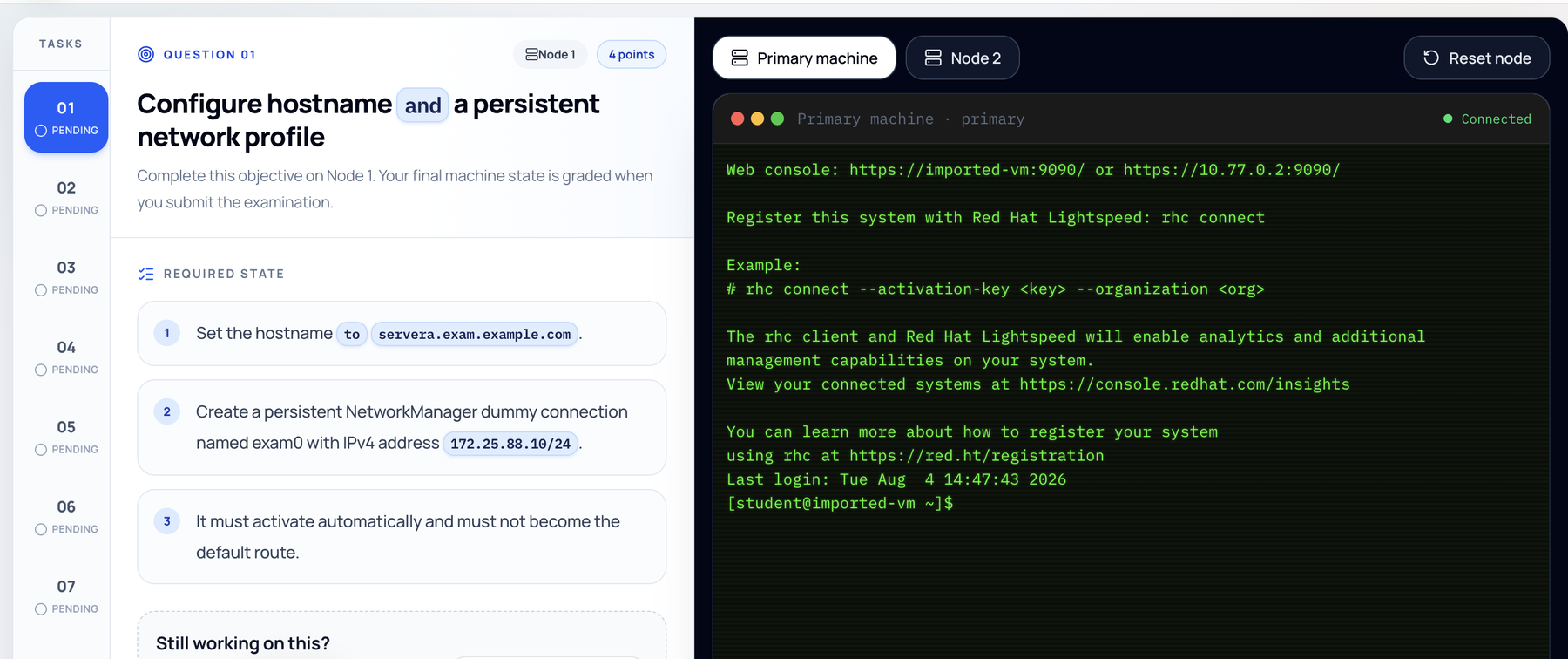
RHCSA mock exams and ticket-based labs
50+ RHCSA production practice tickets
Accept a broken RHEL environment, diagnose the incident, repair it, and pass automatic verification across users, storage, systemd, networking, packages, firewalld, SELinux, and troubleshooting.
21-task RHCSA mock exam
Complete a timed set of practical administration tasks across dedicated RHEL nodes and receive an automatically graded result.
Course content
Getting Started with Red Hat Enterprise Linux
- Understanding Linux
Installing Red Hat Enterprise Linux
- Understanding the Installation Process
- Lab: Performing Installation of RHEL
Access the command line
- Access the command line via the desktop
- Execute commands with the bash shell
- Lab: Executing and Understanding Basic Commands
Manage files from the command line
- Understanding Linux file hierarchy
- Specify files by name
- Manage files with command-line tools
- Lab: File management from the CLI
- Make links between files
- Match file names with shell expansions
- Lab: Finding files
Get help in Red Hat Enterprise Linux
- Reading manual pages
- Lab: Reading Help and Man pages
Create, view & edit text files
- Redirect output to a file or program
- Edit text files from the shell prompt
- Lab: Linux Text Editors
- Change the shell environment
- Lab: Bash Shell Environments Options
Getting AI-assisted Help with Red Hat Enterprise Linux Lightspeed
- Asking Questions and Evaluating Answers from the Command-line Assistant
- Using the Command-line Assistant
Manage local users & groups
- Describe user and group concepts
- Gain superuser access
- Lab: Root Access Management
- Manage local user accounts
- Lab: Creating Users and Groups
- Manage user passwords
- Lab: Managing Passwords for Users
Control access to files
- Interpret Linux file system permissions
- Lab: Reading File Permissions
- Manage file system permissions from the command line
- Lab: Changing File Permissions with Different Methods
- Lab: Changing File Permissions with Different Methods
- Lab: Umask Management
Installing and Updating Applications by Using Flatpak
- Configuring Flatpak for Application Installation
- Managing Applications from Flatpa
Monitor & manage Linux processes
- Process states and lifecycle
- Control jobs
- Kill processes
- Lab: Process Kill Signals
- Monitor process activity
- Lab: Using Different Commands for Process Monitoring
Control services & daemons
- Identify automatically started system processes
- Lab: Understanding Services and Important Files
- Control system services
- Lab: Controlling Service States
Configure & secure SSH
- Access the remote command line with SSH
- Lab: Using Password based SSH
- Configure SSH key-based authentication
- Lab: Using Key based SSH
- Customize OpenSSH service configuration
- Lab: Changing SSH Settings
Analyze & store logs
- Understanding system log architecture
- Review Syslog files
- Lab: Reading Logs
- Review system journal entries
- Lab: Reading Systemd Logs
- Preserve the system journal
- Maintain accurate time
- Lab: Time Sync with Chrony
Manage Networking
- Describe networking concepts
- Validate network configuration
- Lab: Finding out Network Details
- Configure networking from the command line
- Lab: Using Various Networking Commands
- Edit network configuration files
- Lab: Modifying Network Files
- Configure hostname and name resolution
- Lab: Changing Hostname and Local DNS
Archive and Transfer Files
- Manage compressed tar archives
- Lab: Using Tar Utilities
- Transfer files between systems securely
- Lab: Using SCP command
- Synchronize files between systems securely
- Lab: Using Rsync Utility
Install & update software
- Understanding Software Repositories
- Lab: Enable DNF software repositories
- Register system with Red Hat support
- Lab: Using Red Hat Subscription Manager
Access Linux file systems
- Identify file systems and devices
- Lab: Device and Filesystem Commands
- Mount and unmount file systems
- Lab: Attaching and Detaching Devices
- Locate files on the system
- Lab: Finding Files
Improving command line productivity using shell scripts
- Write simple bash shell scripts
- Lab: Basic Scripting Writing
- Loops and conditional constructs in scripts
- Lab: Using Different Loops and Conditions
- Matching text using regular expressions
- Lab: Implementing Regular Expressions
Schedule Future Tasks
- Schedule a deferred user job
- Schedule recurring user job
- Lab: Cron Jobs and At Jobs
- Schedule recurring system job
- Lab: System Jobs
- Manage temporary files
- Lab: Temporary File Management
Tune System Performance
- Adjust tuning profiles
- Lab: Tuned System Profiles
- Influence process scheduling
- Lab: Process Priorities
Manage SELinux security
- Change the SELinux enforcement mode
- Lab: Changing SELinux Modes
- Control SELinux file contexts
- Lab: Understanding and Changing SELinux behaviour with Files
- Adjust SELinux policy with booleans
- Investigate and resolve SELinux issues
- Lab: Troubleshooting SELinux Issues
Maintain Basic Storage
- Add partitions, file systems, and persistent mounts
- Lab: Working with Storage Devices
- Understanding Swap Storage
- Lab: Managing Swap in linux
Maintain Advanced Storage
- Create and extend logical volumes
- Lab: Logical Volume Management
- Understanding Layered Storage
- Lab: Managing Layered Storage in linux
Access network-attached storage
- Manage network-attached storage with NFS
- Lab: Create and Attach Network Storage
- Automount network-attached storage
- Lab: Editing fstab for Storage Automount
Control the boot process
- Select the Boot Target
- Lab: Changing Boot Target
- Reset the Root Password
- Lab: Emergency Reset Root Password
- Repair File System Issues at Boot
- Lab: Reparing File System Corruption
Manage network security
- Manage Server Firewall
- Lab: Configuring Firewall in RHEL
- Control SELinux Port Labeling
- Lab: Allowing Ports with SELinux
Running Containers
- Container Concepts
- Deploy Containers
- Lab: Deploying Containers with Podman
- Manage Container Storage and Network Resources
- Lab: Container Port Mapping
- Lab: Container Volume Mounting
- Manage Containers as System Services
- Lab: Running Containers as Systemd Services
Working with Image-based Red Hat Enterprise Linux
- Image Mode for Red Hat Enterprise Linux
- Creating Installable Images for Image Mode
- Installing Red Hat Enterprise Linux by Using Image Mode
- Managing Image Mode-based Systems
Certification exam details
| Exam Name | EX200 Red Hat Certified System Administrator (RHCSA) exam |
|---|---|
| Exam Version | RHEL 10 |
| Exam Duration | 3 Hours |
| Total Score | 300 |
| Passing Score | 210 |
| Exam Validity | 365 Days |
| Certification Validity | 3 Years |
Frequently asked questions
- Is this training live or pre-recorded?
- The training is live instructor led training which is available in classroom as well as online format. We also record every training session which is then uploaded to our student portal.
- How will I join the live online training?
- The live online training is conducted via the zoom software, we will be providing you with the zoom meeting link to join the training.
- How many students are there in a single batch?
- On an average one batch will have a maximum of 18 students. We keep smaller batch sizes to promote interaction between the students and the instructor.
- How can I practice the labs?
- We will provide you with online labs. If needed, we can also provide you with the software required to create your own labs.
- Do you offer payment flexibility?
- Yes, we provide zero interest EMI options.
- Can I attend the training in classroom?
- Yes, our classroom training location is in New Delhi near Lajpat Nagar metro staton.